Manuals · Hersof Plan
Manual Hersof Plan
Hersof Plan shows, per machine and per week, how much work is scheduled compared with what the machine can handle. That way you see at a glance where it is too full, where there is still room and whether an order will be ready on time. Part 1 helps the administrator get started. Part 2 explains every screen.
Part 1 — Quick start for the administrator
Six steps to your first schedule. The most important thing is a correct capacity per machine: everything is calculated from it.
Getting started — as administrator of a new account you see the card Getting started with Hersof Plan at the top of Load: machines, holidays and leave, your orders and your colleagues, each with one button. What is done gets ticked automatically; the card disappears when everything is done, or with Hide.
1 Signing in
- You receive an email from Hersof: "You have been invited to Hersof". Click Choose my password, choose a password (at least 6 characters) and click Set password.
- Sign in at hersof.be/login.html. With no machines yet, Plan opens on the Machines screen.
The link in the email only works once. Forgotten your password? Enter your email address on the sign-in page and click Forgotten your password?.
2 Your machines and their capacity
Go to Machines. First create a few categories (e.g. Turning, Milling, Welding), then your machines. A "machine" can also be a welder or a workstation.
- Hours per day — at the top of Machines, for all machines: 16 h by default, Monday to Friday. If a machine differs (e.g. one shift: 8 h), enter that on the machine.
- Reserve margin (%) — what you want to keep free for rush jobs and the unexpected (10 % by default).
Do you also use Hersof Maintenance? Then click Import from Maintenance: all machines from Maintenance are added to Plan, linked straight away (see Together with Maintenance).
3 The calendar
Go to Calendar and click Belgian public holidays for this year and next. Add your summer shutdown and other closing days (for the whole company or for a single machine). Closed days are deducted from that week's capacity.
4 Your first order
- Click New order (or press N). Enter the customer, the customer purchase order and the delivery date.
- Add an operation for each step: what (e.g. sawing, turning), on which machine, in which week and how many hours.
- Click Save, or Save and schedule: the operations then go straight to the end of their machine's queue and you see the day planning on the start day.
Do you often make the same parts? Then create items with their standard operations: Plan then calculates the hours and suggests the weeks itself.
5 Reading the load
On Load you see, per machine and per week, the scheduled hours compared with the capacity: normal, in the reserve margin or overbooked. Click a cell to see which orders are in that week.
6 Inviting colleagues
Click Users in the menu on the left, enter the name and email address, choose the access level and the language, and click Invite. A Viewer is free — handy for a screen in the workshop.
Part 2 — Full manual
Access levels: who can do what?
| Administrator | Planner | Viewer | |
|---|---|---|---|
| View schedule, orders and report | ✓ | ✓ | ✓ |
| Schedule orders and operations, calendar, items, import CSV | ✓ | ✓ | – |
| Machines and categories | ✓ | – | – |
| Users and plan | ✓ | – | – |
| Counts towards the plan | yes | yes | no — free |
One login works in all Hersof apps; in Admin a planner is called a staff member, in Maintenance a technician.
Adjust it yourself — the administrator can adjust what each access level may do, in Users → What each access level may do → Adjust: e.g. let a planner manage machines and categories, or not let them delete orders. The database checks it itself; the app only shows what is allowed.
The screen
- Menu on the left: Daily (Load, Orders) and Management (Machines, Items, Calendar, Report, Import), and at the bottom Install as app, Users and Sign out. Orders shows the number of open orders.
- On a phone: at the bottom Load, Day planning, Queue, Orders and More (where you also find Machines and Calendar).
- Keyboard shortcuts: N = new order, / = search, Esc = close window.
- Plan works online only. If you come back to the window after a while, the data is refreshed automatically. If a colleague has changed the same order in the meantime, nothing is overwritten and you get a message.
- An administrator can adapt the menu: see Arranging the menu.
The buttons at the bottom of a window are always in the same place: on the left Delete and related actions, on the right Close and the green main button (e.g. Save). A recommended next step sits next to Close, with a coloured border (e.g. Save and schedule). What you delete without much going with it (a closure, a category) is removed straight away, with Undo in the message.
Arranging the menu
An administrator can adapt the menu on the left to the way the company works: click your name at the top right and choose Arrange menu. The arrangement applies to everyone in your company.
- Groups — tick the groups you want to use. The names come from a fixed list (e.g. Daily, Production, Management), so they are correct in every language. Each name can be chosen only once.
- Moving and order — choose an item's group; use the arrows ↑ and ↓ to put groups and items in the order you want.
- Hide — hide what you don't use. Restore in the list Hidden items brings it back.
- New — a new item after an update appears in the group New, at the bottom.
- Restore default arrangement — puts everything back the way Hersof provides it.
What someone may not use under their access level or your plan stays hidden for them or shows a padlock. Install as app, Users and Sign out always stay at the bottom. On a phone the bar at the bottom stays as it is; a hidden item does drop out of it.
Arrange my menu — every user can also arrange their own menu: click your name and choose Arrange my menu. It applies to you only. Back to the company default shows the administrator's menu again. If the administrator wants everyone to see the same menu, they untick Users may arrange their own menu in Arrange menu.
Load
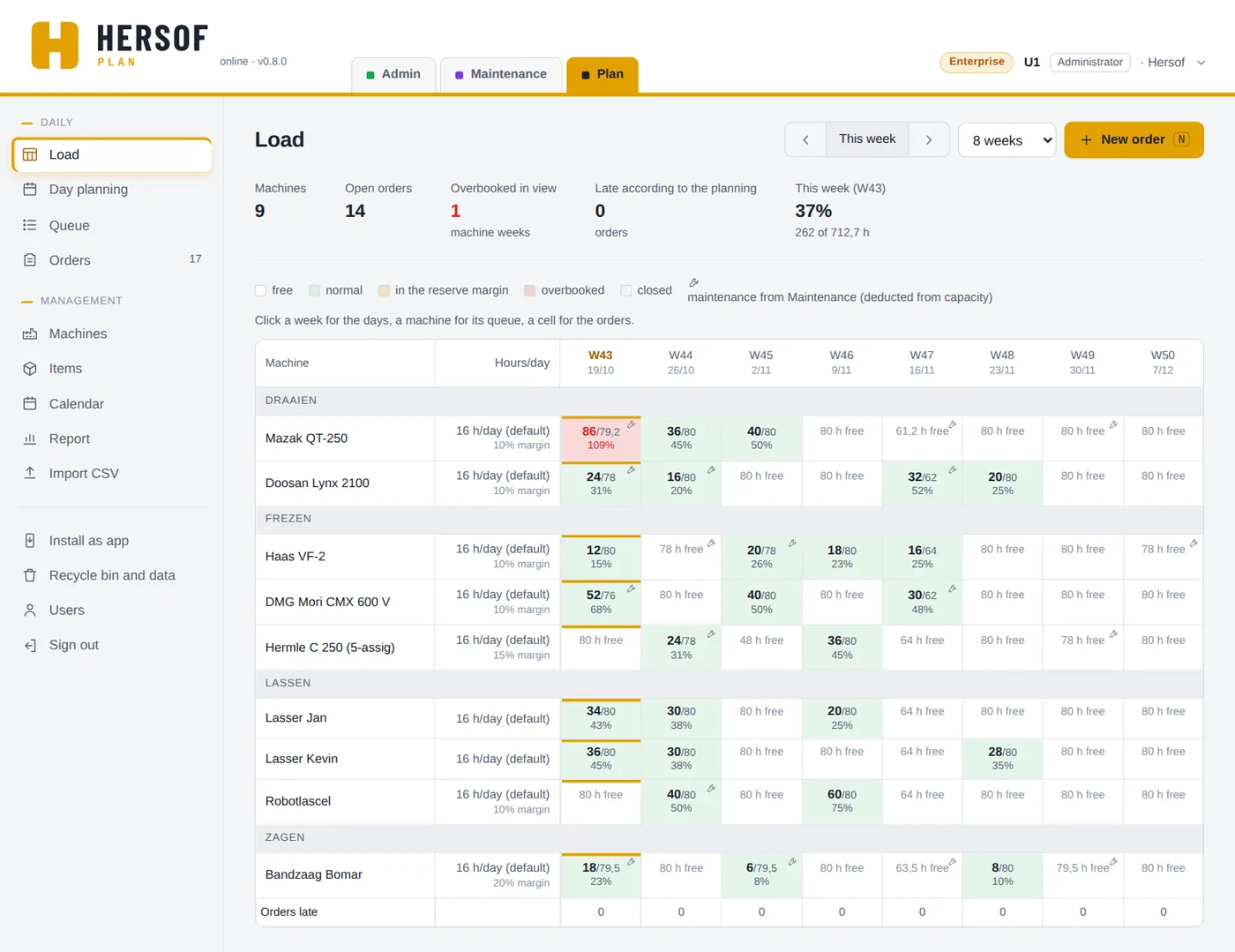
At the top: the number of machines, the open orders, how many machine-weeks are overbooked, and this week's load. Choose how many weeks you see (4, 8, 12 or 26), browse with the arrows or click This week.
Each row is a machine (grouped by category), each column a week. The cell shows scheduled / capacity and the percentage, or how many hours are still free.
| Colour | Meaning |
|---|---|
| white | free — nothing scheduled |
| green | normal — scheduled, below the reserve margin |
| yellow | in the reserve margin — your rush capacity is being used |
| red | overbooked — more scheduled than the machine can handle |
| hatched | closed — closed for the whole week |
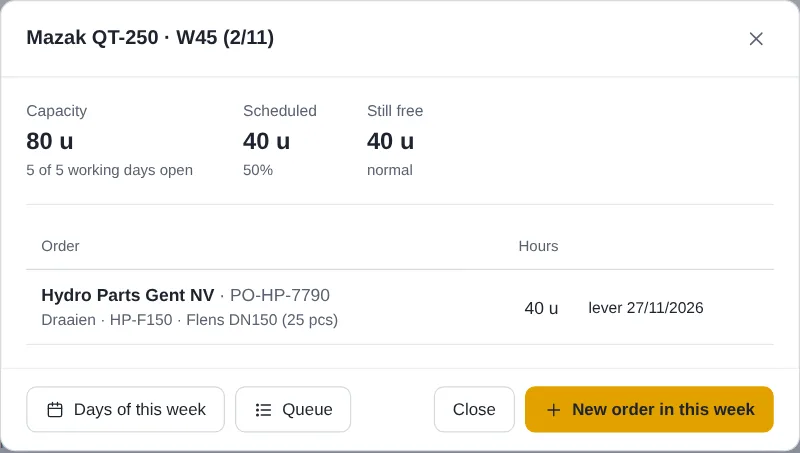
- Click a cell: the capacity (how many working days open, minus maintenance), what is scheduled, what is still free, the closures, the maintenance from Maintenance and the orders for that week. With New order in this week you can schedule something extra straight away.
- Click a week (at the top): that week opened up into days. Click a machine name: the queue of that machine (see Day planning and queue). At the bottom, the row Orders late shows per week how many orders with their delivery date in that week will be late according to the planning Team.
- A spanner in a cell = maintenance from Hersof Maintenance (deducted from capacity).
Day planning and queue
The weekly overview (Load) stays. Click a week to see it in days; click a machine to see its queue. Plan calculates per day: a 20 h operation on a machine with 16 h per day runs over two working days. Everything also works without dragging, with a finger on a tablet.
- Queue — per machine, the operations in the order in which they will be run, with the days Plan calculates and the delivery date. Change the order with the arrows ↑ ↓ (or drag by the dotted handle). The green Done is on the operation in progress (otherwise on the first one). Does a machine need to be freed? Click Move all…: choose another machine and tick what has to go (everything by default); they go to the end of that queue.
- Day planning — per machine a strip per day with the operations as bars. Tap or click a bar and choose To another day…: choose the day (and another machine if needed) and the operation is placed on that day (pinned). Dragging with the mouse also works. An operation spanning several days is one continuous bar: each day shows its hours, the following days marked continued (e.g. “continued BB-2026-114 · 5.4 h”); a narrow bar shows only the purchase order. You always see 5 working days: ‹ and › move by one day, « and » by one week, and Today puts today first. From the menu the day planning starts today; from Load, on the Monday of that week; To Load takes you back.
- To be scheduled — operations that only have a week (new, from Admin, Calc or an import). They count in Load. Tap them: Schedule (at the end of the queue) or Schedule on a day…. Schedule all does that for all of them, earliest delivery date first; if that was not intended, click Undo in the message.
- Order of operations — an operation only starts when the previous one of the same order is done (plus the waiting time, if filled in).
- Done — the workshop manager or the planner reports an operation as done with one click. It disappears from the planning and what follows moves forward. A mistake? Recently done → Not done after all.
- Still to do — if an operation runs over or goes faster, enter how many hours are still needed: everything after it moves along.
- Pin — an operation does not start before its day (e.g. because the material only arrives then). In progress shows what is on the machine now.
- Moving on and delivery date Team — every day, what is not yet done moves on by itself, and an order that finishes after its delivery date turns red. Without this function each operation starts on its own day and an overloaded day shows in red.
Orders and operations
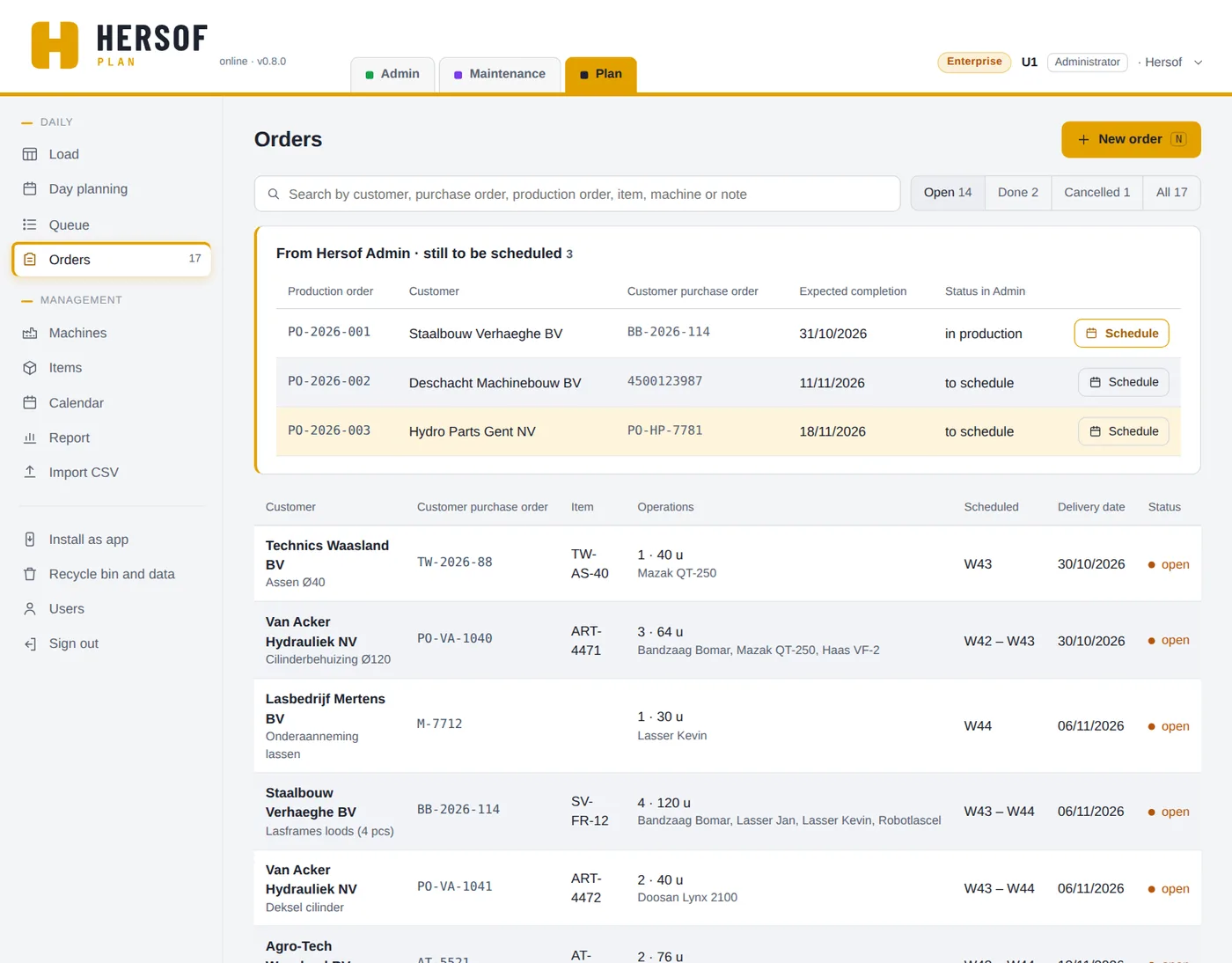
Search by customer, purchase order, production order, item, machine or note, and filter on Open, Done, Cancelled or All. For each order you see the operations, the scheduled weeks and the delivery date. Shown in red: delivery date passed or scheduled after delivery date. The number next to Orders in the menu counts the open orders and the production orders from Admin still to be scheduled.
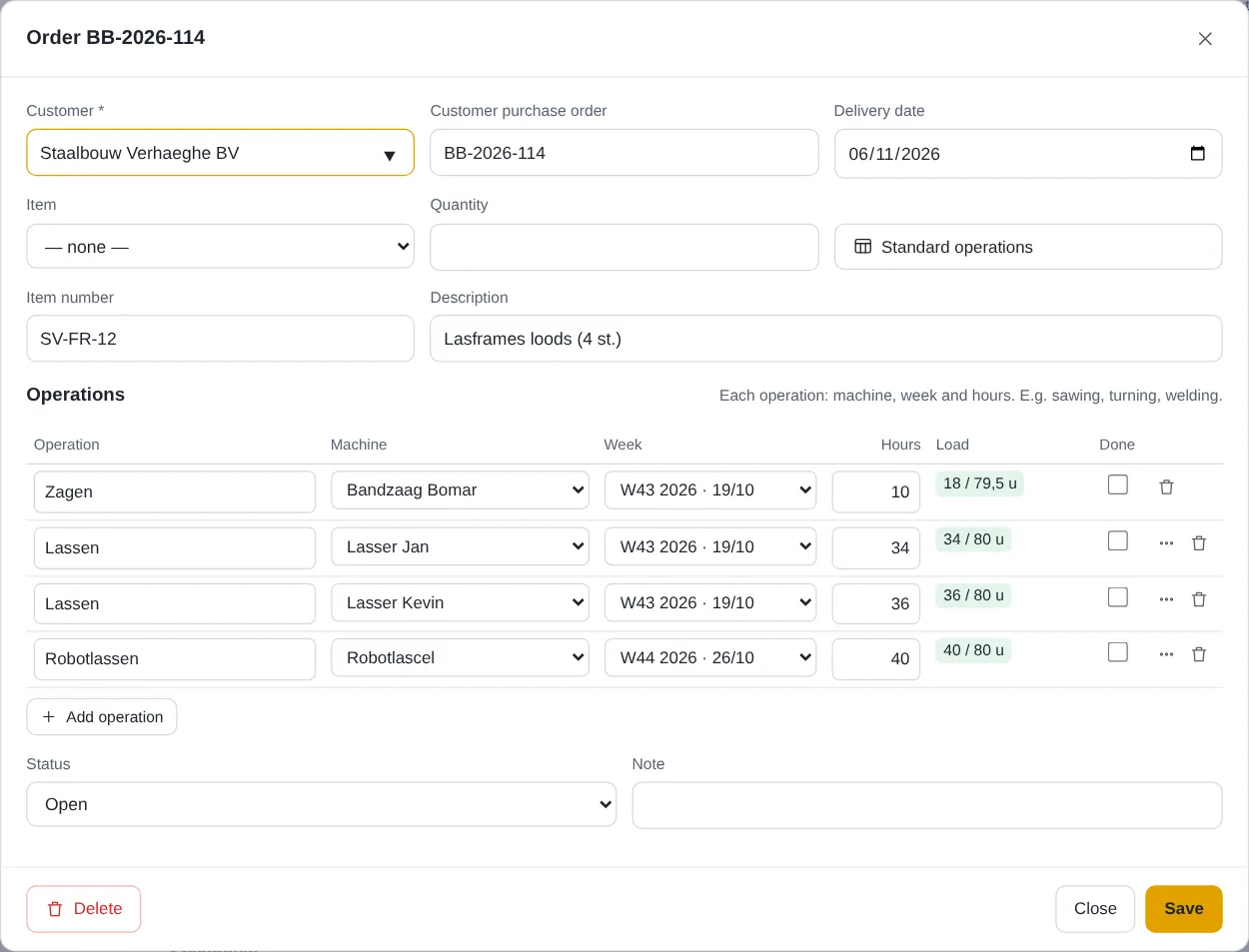
- Customer (required; Plan suggests customers you have used before), Customer purchase order (Plan warns you if the same customer already used it), delivery date, item and quantity, item number, description and note. If you choose an item, the Item number field disappears (the item's number comes along). For an existing order the status is added.
- Operations — for each step: what, on which machine, in which week and how many hours. The Load column immediately shows how full that machine is in that week. For an existing order, tick Done when a step is done. The waiting time (working days between the previous operation and this one, e.g. outsourced work) is entered via ⋯ More options on the operation.
- Status: Open, Done or Cancelled. Only a cancelled order no longer counts towards the load; the hours of completed steps also continue to count. When you report the last operation as done in the queue or the day planning, the order is set to Done automatically.
- You can delete an order, but Cancelled is usually better: that way you can still find it.
How Plan suggests weeks
For operations that are not yet scheduled (see Day planning), Plan suggests the weeks with Standard operations (from an item) and with Schedule from Admin:
- each operation goes into the first week from now in which it still fits within the capacity minus the reserve margin;
- a next step never comes before the previous one;
- if it does not fit anywhere (within a year), Plan puts it in the week of the previous step, with a red warning: then split it over several weeks or choose a different machine.
You can adjust every suggestion before you save.
Machines and categories
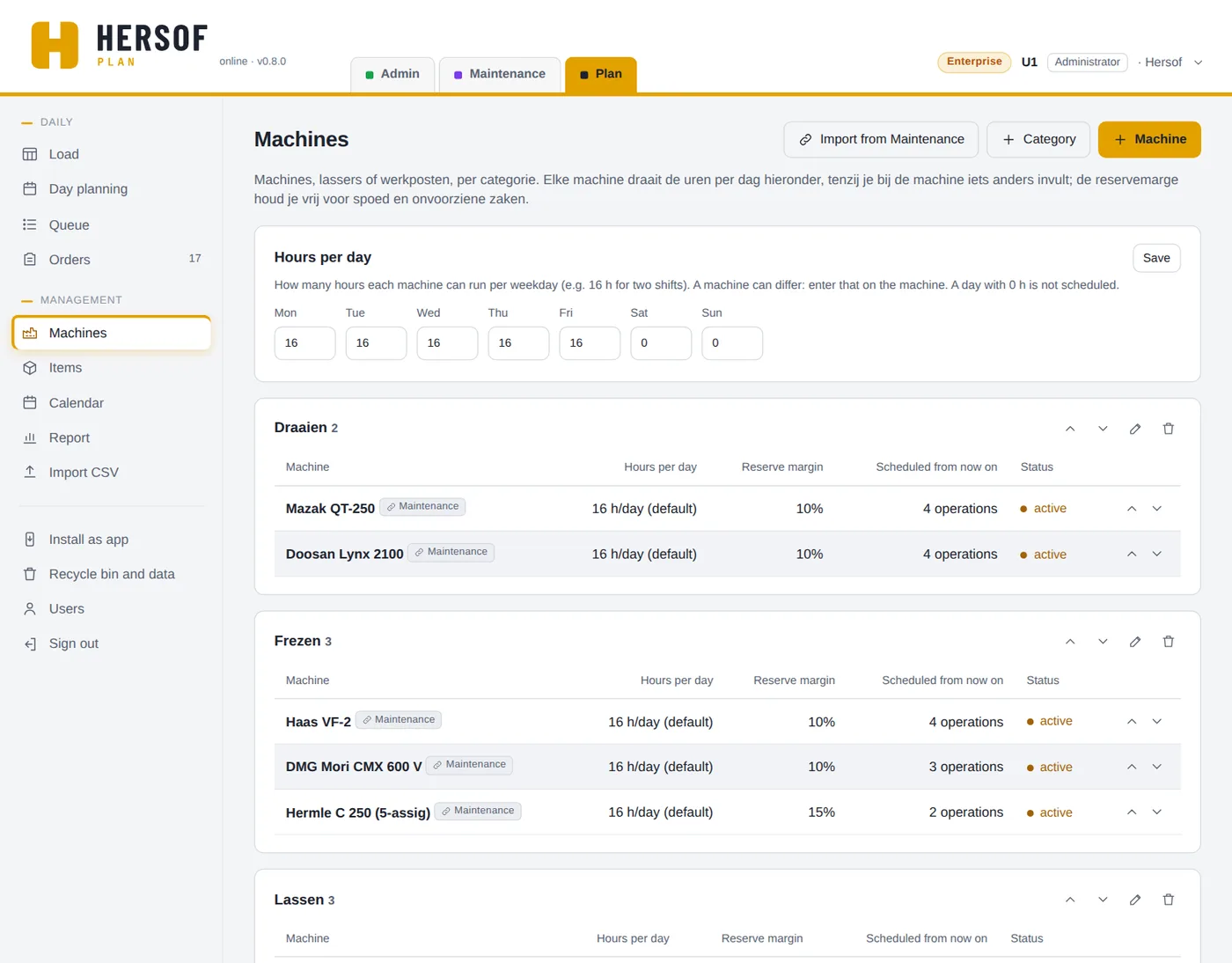
Only the administrator can change machines.
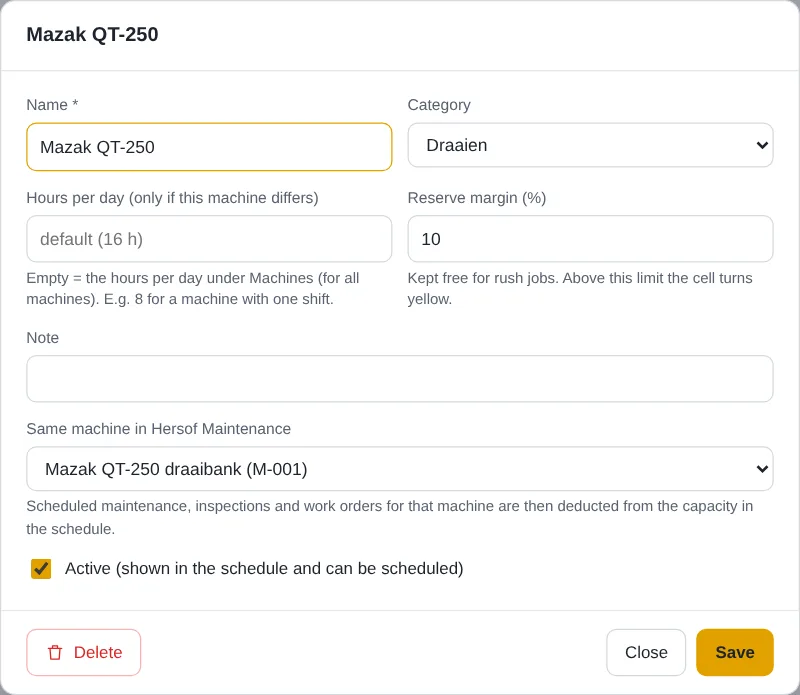
- Name, category, hours per day (only if the machine differs from the hours per day for all machines), reserve margin (%) and a note.
- Same machine in Hersof Maintenance — link them, and the scheduled maintenance is deducted from the capacity.
- Active — if you untick it, the machine disappears from the grid, but the schedule is kept. You cannot delete a machine that has operations; set it to inactive.
- You can rename and delete categories and move them up or down; you can also move machines with the arrows. A deleted category comes back with Undo in the message.
How Plan calculates: capacity of a week = hours per week × open working days / 5, minus the maintenance from Maintenance. Weekends never count; a closing day removes a whole day.
Calendar
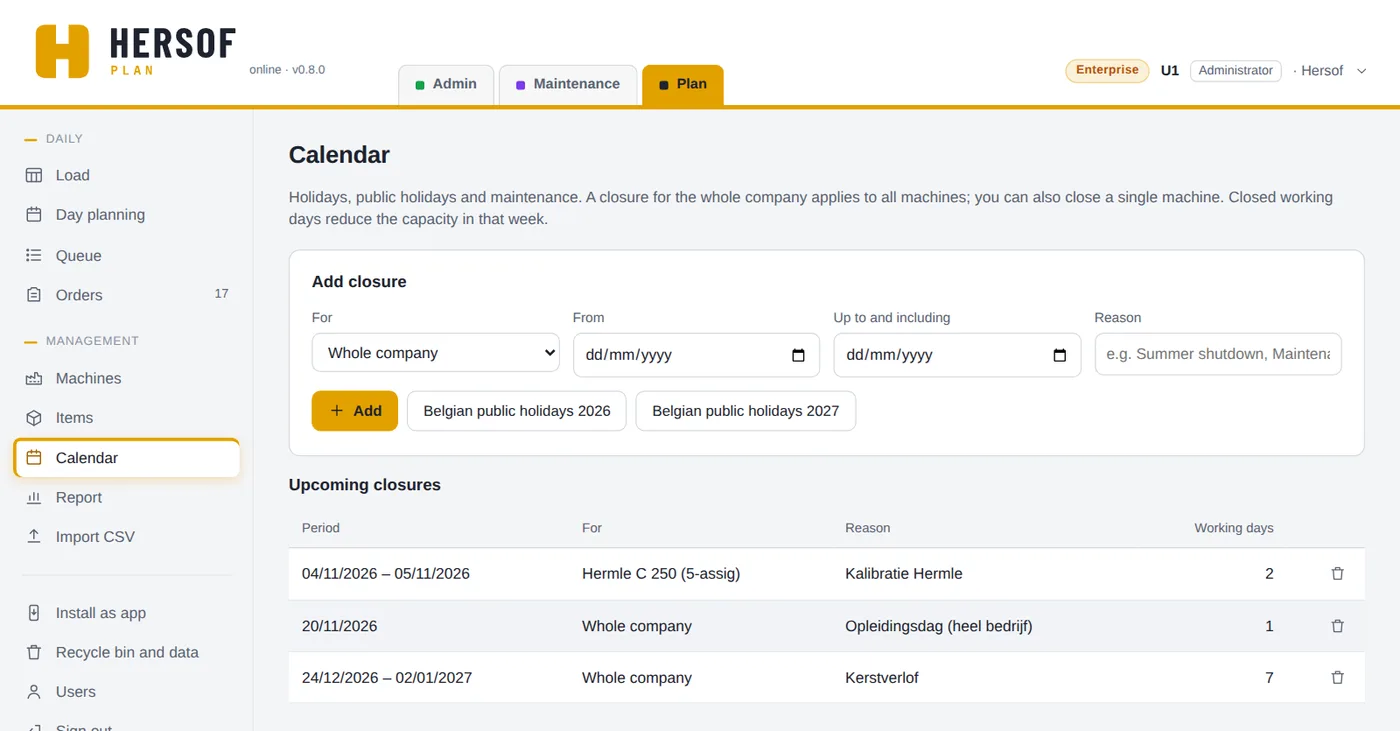
Add closure: for the whole company or for a single machine, from–to inclusive, and a reason (e.g. summer shutdown, maintenance). A closure applies to whole days, for up to a year. If operations that are already scheduled fall in a closure for a single machine, Plan immediately offers Move… in the message (to another machine). With Belgian public holidays you add, in one go, the ten public holidays that fall on a weekday. You cannot edit a closure: delete it (that happens straight away, with Undo) and add it again. With Also show past you also see old closures.
Items
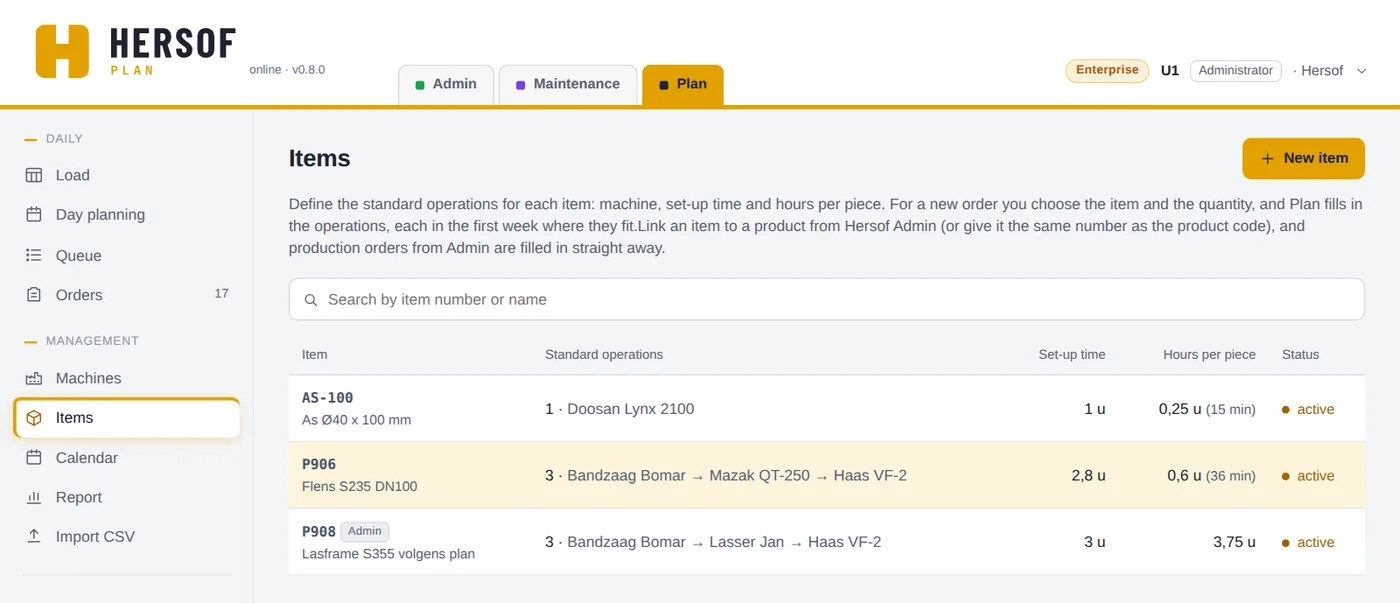
An item is a part you make often, with its standard operations in order: for each step the machine, the set-up time (hours) and the hours per piece (0.25 = 15 minutes).
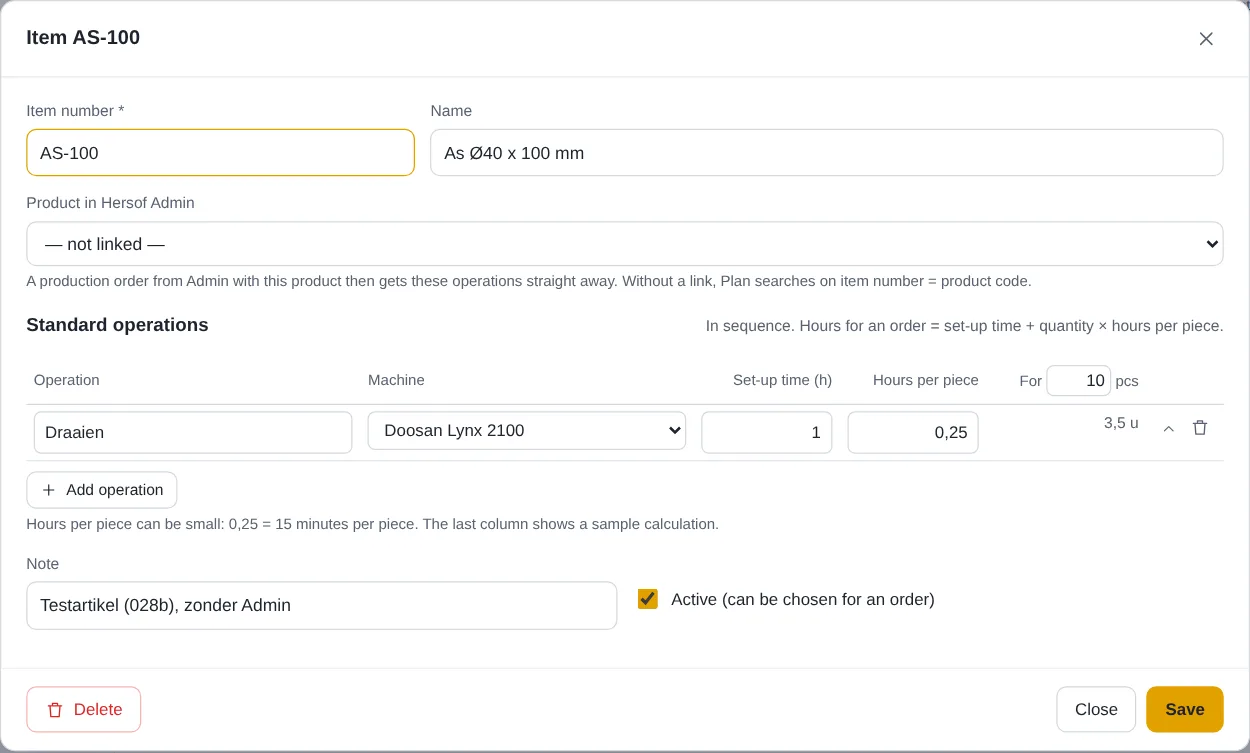
In an order you choose the item and the quantity: Plan fills in the steps itself straight away with set-up time + quantity × hours per piece and suggests the weeks. With Standard operations you recalculate; if there are already operations you changed yourself, Plan first asks whether they may be replaced. Set an item you no longer make to inactive rather than deleting it.
Report Team
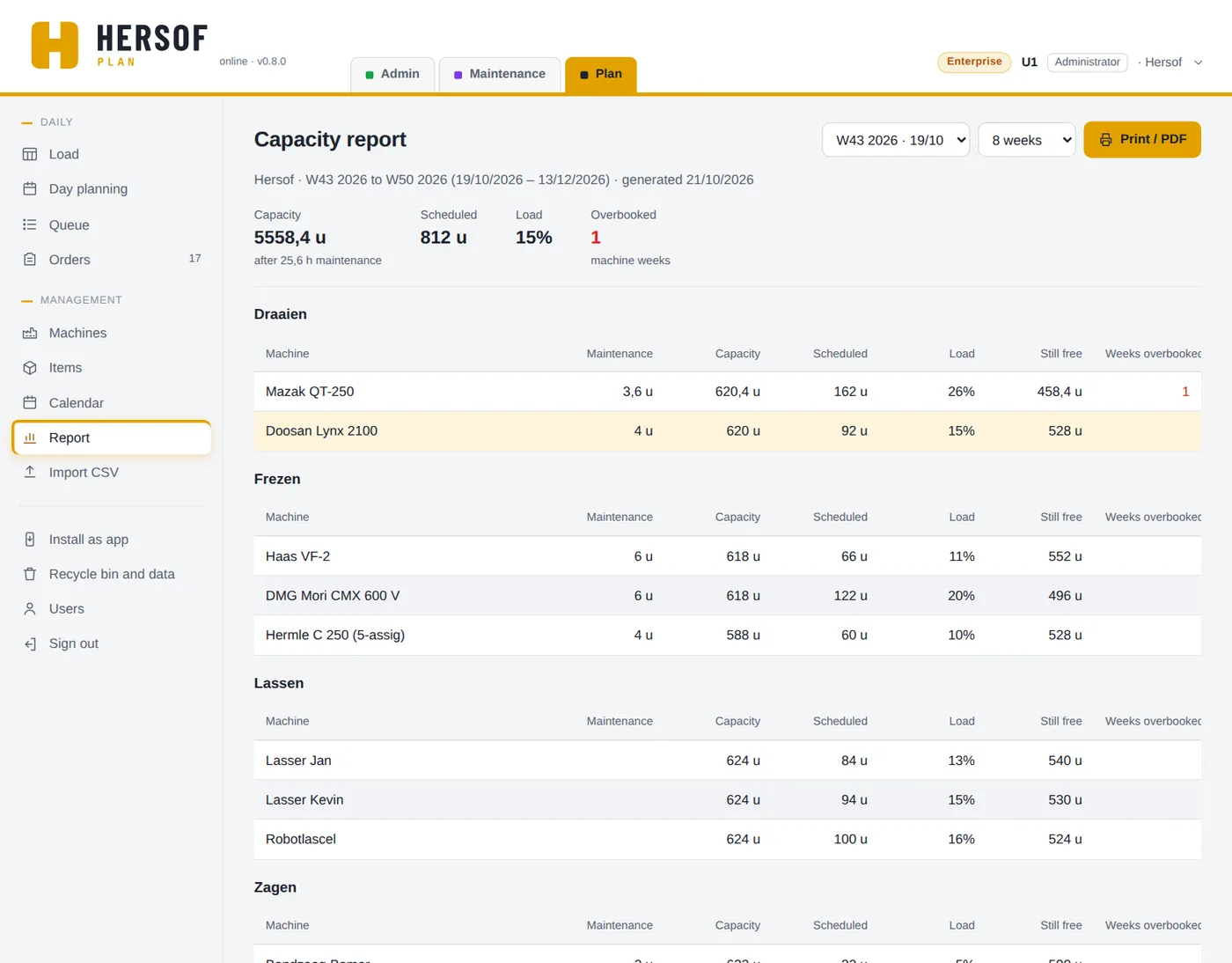
Choose the start week and the period (4 to 26 weeks). You see the total capacity (after maintenance), what is scheduled and the load; per machine what is still free and how many weeks it is overbooked; the overbooked weeks in a list; and the orders that must be delivered in that period. With Print / PDF you print it or save it as a PDF.
Importing Team
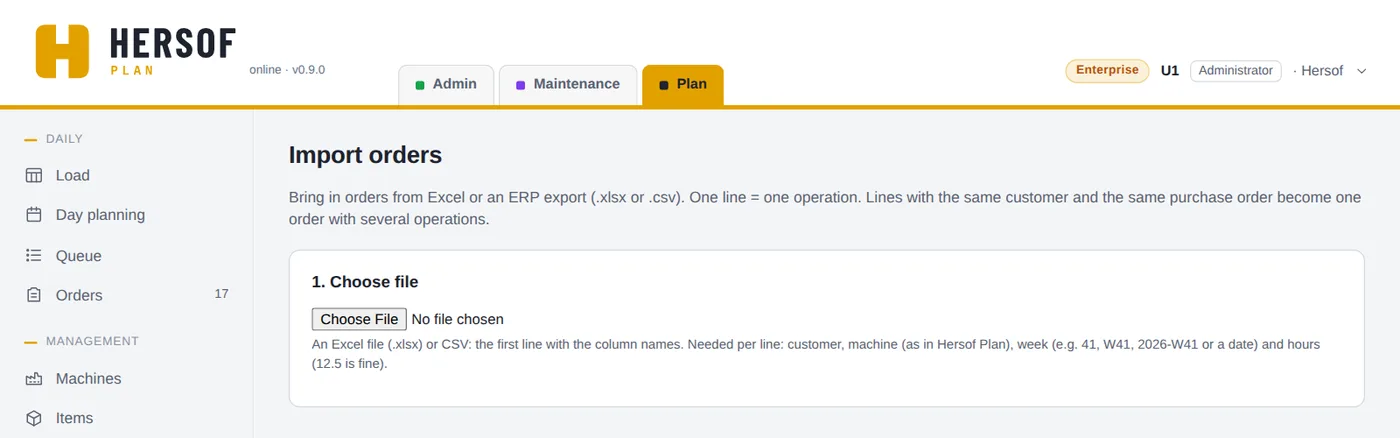
Bring in orders from Excel or your ERP system: one line = one operation. Lines with the same customer and the same purchase order become one order with several operations.
- Choose file: your Excel file (.xlsx, the first sheet) or a CSV (semicolon, comma or tab).
- Map columns: customer, customer purchase order, item number, description, operation, machine (exactly the same name as in Plan), week or date (e.g. 41, W41, 2026-W41 or a date) and hours, optionally the delivery date.
- Check and import: you see the new orders, the lines with an error (and why), and what already exists (this is skipped).
Together with Hersof Admin Team
Do you work with production orders in Hersof Admin (from Team, in both Admin and Plan)? Then at the top of the Orders screen there is the list From Hersof Admin · still to be scheduled, the earliest expected at the top. Click Schedule: Plan creates an order with the customer, the customer purchase order and the expected date as delivery date; the production order number is shown separately (e.g. Admin PO-2026-001). If the product in Admin is linked to an item in Plan (or the product code is the same as the item number), the standard operations with suggested weeks come along too. With Save and schedule they go straight into the queue.
The status goes back to Admin automatically: when an operation is finished, the production order becomes in production; when the order is finished, it becomes ready. If the production order is cancelled or set to ready in Admin while the order in Plan is still open, Plan shows a red message with the button Set to Done here too or Cancel here too.
Together with Hersof Maintenance Team
Link a Plan machine to the same machine in Hersof Maintenance (in the machine's window, or all at once with Import from Maintenance). The scheduled maintenance, inspections and work orders for that machine are then deducted from the capacity in Plan, including running-hours maintenance (with an estimated date). Anything overdue counts once in the current week.
You set how many hours are deducted in Maintenance, under Estimated duration (hours) of the action or work order. Empty = the average of previous times. If it says duration unknown, enter an estimated duration in Maintenance.
Recycle bin and your data
Deleted something by mistake? Don't panic: it stays in the recycle bin for 30 days. Only the administrator sees the recycle bin, in Recycle bin and data (bottom left in the menu).
- Restore — one click brings it back, exactly as it was (number, date …), together with whatever was removed with it (e.g. the operations of an order). Whatever exists again is never overwritten; if something fails, you see why.
- For each deletion you see when, by whom and until when it stays in the recycle bin. After 30 days it is gone for good, photos and attachments included.
- Download my data — one zip file with all your data from this app (opens in Excel) and the photos, attachments and documents. That way you always have your own copy. Keep it in a safe place. If your last download is more than 3 months ago, the administrator gets a reminder.
Language, appearance and installing
- Click your name at the top right: appearance (light, dark or same as your device), language (Nederlands, Français, English, Deutsch), Info for support and Sign out. These choices apply in all Hersof apps.
- Install as app (menu on the left) — its own window and icon. In Edge or Chrome with one click; on an iPhone via the Share button → Add to Home Screen. Handy for a large screen in the workshop with a viewer login.
Plans and trial period
Starter includes the grid, orders, machines, items and the calendar. From Team, the report, importing from a CSV file and the integration with Hersof Admin and Hersof Maintenance are added. The plan also determines how many administrators + planners you can invite: Starter 3, Team 10, Pro 25, Enterprise 50; viewers are unlimited and free. The integration with Admin's production orders requires Team, in both Admin and Plan. Prices are on the Hersof Plan page.
Trial period — for the first 30 days you work with all the Pro features. From 7 days before the end, the administrator sees a message at the top.
Need help?
Email herwig@hersof.be. Something going wrong? Click your name → Info for support, copy what it shows and paste it into your email. Errors in the app are also reported to Hersof automatically.